There are situations where you may need to download your Monzo bank statement. You might be applying for a visa, proving your address to a landlord, submitting documents for a loan application, or simply reviewing your spending habits. Instead of contacting customer support, Monzo lets you get your statements directly from the app in just a few taps.
Knowing how to export your Monzo bank statement saves time and gives you quick access to important financial records whenever you need them. You can choose different date ranges and download your statement in formats that suit your needs, whether for official purposes, budgeting, or accounting.
In this guide, you’ll learn the exact steps to download your Monzo bank statement using the app. Also, explain the different statement formats available and help you decide which one is best for your situation.
Key lessons:
- Learn two easy ways to download a Monzo bank statement in the app.
- Understand how to choose the right account before exporting your statement.
- Find out how to select custom or specific date ranges.
- Discover the differences between PDF, CSV, and QIF formats.
- Know which statement format is best for visas, budgeting, or accounting.
- Get answers to frequently asked questions about Monzo statements.
Why Download the Monzo Bank Statement Online
There are several reasons why you may need to get your Monzo bank statement from the app. These include:
To provide proof of address
Many landlords, banks, and service providers ask for a recent bank statement to confirm where you live. A Monzo statement can serve as an official document for this purpose.
To support visa applications
Visa offices often require applicants to submit bank statements to verify their financial history and ability to support themselves during their stay.
To apply for loans or mortgages
Lenders may request your bank statements to assess your income, spending habits, and overall financial situation before approving your application.
To track your spending
Downloading your statements allows you to review your transactions and understand where your money is going. This can help you create better budgeting habits.
To keep personal financial records
Some people prefer to save copies of their statements for future reference. Having these records can be useful if you need to verify past transactions.
To resolve payment disputes
If there’s ever a disagreement about a payment or transfer, your bank statement can provide evidence of the transaction details.
Method 1 – Download Statement via the Home Screen
This is one of the quickest ways to download your Monzo bank statement.
Step 1: Open the Monzo app
Unlock your phone and launch the Monzo app. Sign in to your account if you’re not already logged in.
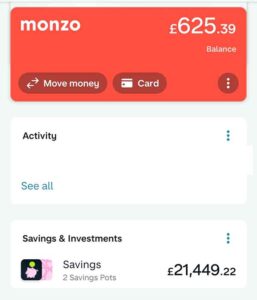
Step 2: Tap the three dots icon next to your account
From the home screen, locate your account balance. Tap the three dots icon beside your account to open more options.
Step 3: Scroll and select “Bank statements”
Scroll through the list of available options and tap “Bank statements” to continue.
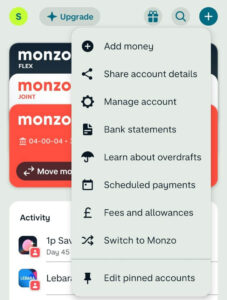
Step 4: Confirm or switch your account
Monzo will show the account currently selected. If you have multiple accounts, such as a Joint account or Flex account, tap to switch to the correct one before proceeding.
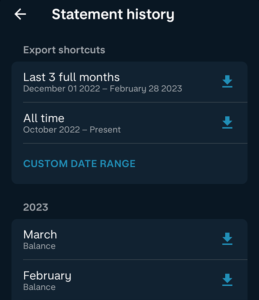
Step 5: Choose your date range
Select the period you want your statement to cover. You can choose from:
- Last three months
- Custom date range
- A specific month
Step 6: Select your format (PDF, CSV, QIF)
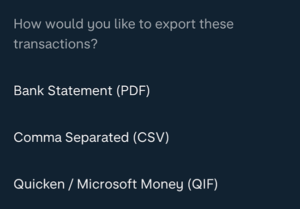
Choose the file format that best suits your needs:
- PDF for official documents and printing.
- CSV for spreadsheets and spending analysis.
- QIF for importing into accounting software.
Step 7: Save or share the file
Once your statement is ready, save it to your device or share it using email, messaging apps, or cloud storage services.
That’s it. Your Monzo statement will be downloaded and ready whenever you need it.
Method 2 – Download Statement via the Monzo Help Section
Alternatively, you can also get your Monzo bank statement through the Help section. The process is just as simple.
Step 1: Open the Monzo app
Launch the Monzo app on your phone and log in to your account if required.
Step 2: Tap “Help” at the bottom left
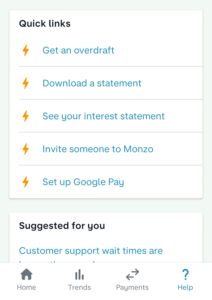
From the app’s home screen, tap “Help” located at the bottom left corner of the screen.
Step 3: Select “Download a statement” (or search for it)
In the Help section, tap “Download a statement.” If you don’t see it immediately, use the search bar and type “Download a statement” to find the option quickly.
Step 4: Confirm or switch your account
Monzo will display the account currently selected. If you need a statement for another account, such as your Joint account or Flex account, switch to the correct account before continuing.
Step 5: Choose your date range
Select the period you want your statement to cover. You can choose from the available options or set a custom date range.
Step 6: Select your format
Choose the format you would like to use:
- PDF for official and printable statements.
- CSV for spreadsheet analysis and budgeting.
- QIF for accounting and finance software.
Step 7: Save or share the file
After Monzo generates the statement, save it to your device or share it through email, cloud storage, or another app of your choice.
This method is especially useful if you’re already browsing the Help section or having trouble locating the statement option from the home screen.
Read: How to get Signed & Stamped Monzo Bank Statement
Understanding Your Monzo Account Statement Options
Before you export your Monzo statement, it’s helpful to understand the options available. Monzo gives you flexibility when choosing both the time period and the account you want the statement for.
What Date Ranges Can You Download?
Monzo allows you to download statements for different periods depending on your needs.
Last 3 months
If you only need a recent statement, you can quickly generate one covering the last three months. This is useful for proof of address, rental applications, and other requests that require recent financial records.
Custom date range
Need transactions from a specific period? You can choose your own start and end dates to create a statement that matches your exact requirements.
Specific single month
You can also download a statement for an individual month. This option is ideal if you want to review your spending for a particular month or provide records for a specific period.
Which Accounts Can You Download Statements For?
If you have more than one Monzo account, make sure you select the correct one before downloading your statement.
Personal current account
This is your everyday Monzo account used for receiving money, making payments, and managing daily spending. You can easily download statements for this account through the app.
Joint account
If you share a Joint account with another person, you can download statements for it by selecting the Joint account when prompted.
Flex account
Monzo Flex users can also access and download statements for their Flex account. This can be useful when tracking repayments or reviewing Flex transactions.
Understanding these options helps you generate the right statement the first time, saving you from repeating the process later.
PDF vs CSV vs QIF – Which Format Should You Download?
When you download or export your Monzo bank statement, you’ll be asked to choose a file format. Each format serves a different purpose, so picking the right one depends on what you need the statement for.
PDF (Portable Document Format)
What it is:
A clean, formatted document that looks like an official bank statement, complete with layout and branding.
Best for:
Visa applications, landlords, proof of address, printing, or emailing official documents.
Pros:
- Looks professional and official
- Easy to read and share
- Widely accepted by institutions
Cons:
- Not editable
- Hard to analyze data or calculate totals
CSV (Comma-Separated Values)
What it is:
A raw data file that displays your transactions in rows and columns, similar to a spreadsheet.
Best for:
Budgeting, tracking spending, Excel, Google Sheets, and financial analysis.
Pros:
- Easy to sort and filter
- Great for calculations and analysis
- Works well with spreadsheets
Cons:
- No branding or official layout
- Not suitable for formal submissions
QIF (Quicken Interchange Format)
What it is:
A file format designed for importing transactions into financial and accounting software.
Best for:
Accounting tools like Quicken, QuickBooks, or MoneyWiz.
Pros:
- Keeps transaction categories
- Useful for accounting and bookkeeping software
Cons:
- Not easy to read manually
- Not supported by most spreadsheet apps
Comparison Table
| Format | Best For | Pros | Cons |
|---|---|---|---|
| Official use (visa, landlord, printing) | Professional, readable, widely accepted | Not editable | |
| CSV | Budgeting and analysis | Easy to sort, filter, calculate | No official formatting |
| QIF | Accounting software | Works with finance tools, keeps categories | Not user-friendly for general viewing |
Choosing the right format depends on your goal, so it’s worth taking a moment before downloading.
Benefits Monzo Bank Account Statement
Getting your Monzo bank statement directly from the app is simple and saves you a lot of time.
Fast and convenient access
You can download or export your statement instantly anytime you need it. This is helpful when you have urgent requests like visa applications or rental paperwork.
No need for customer support
Everything is self-service. You don’t need to call or message Monzo support to request documents, which makes the process quicker.
Multiple format options
You can choose PDF, CSV, or QIF depending on your needs. This gives you flexibility whether you need official documents or financial analysis.
Easy record keeping
You can save your statements on your phone, email them to yourself, or store them in cloud storage for future use.
Helps with financial planning
By downloading your statements, you can review your spending habits and improve your budgeting and money management.
Secure and private
Your statements are accessed directly through your secure Monzo app, ensuring your financial data stays protected.
Useful for many purposes
Whether it’s for landlords, banks, accountants, or personal tracking, your Monzo statement is accepted in many everyday financial situations.
Frequently Asked Questions (FAQs)
- Can I download a Monzo bank statement without the app?
No. Monzo is a mobile-first bank. You need the app to download statements. However, you can view transactions on the web portal, but downloading statements requires the app. - How far back can I download Monzo statements?
You can download statements for any past month since you opened your account. There’s no official cutoff, but very old months may take longer to generate. - Can I download a statement for a closed Monzo account?
No. Once an account is closed, you lose access via the app. Download any needed statements before closing. - Is the CSV file compatible with Google Sheets?
Yes. Google Sheets (and Excel) opens CSV files perfectly. Just upload the file to Google Drive and open it with Sheets. - Can I get a stamped Monzo bank statement?
You can request a stamped printed statement posted to your address. However, PDF statements from the app are considered official and are accepted by most institutions such as visa offices, landlords, and banks. - How do I download a Monzo statement for a Joint account?
Follow either method above, but when prompted to select an account, choose your Joint account instead of your personal one. - What’s the difference between a bank statement and a transaction history export?
A bank statement (PDF) includes running balances and branding. A transaction export (CSV/QIF) is raw data without formatting or balances. - My downloaded CSV looks messy. What do I do?
Open it in Excel or Google Sheets and use “Text to Columns” if needed. Monzo’s CSV is usually clean, but some spreadsheet apps require import settings. - Is it safe to share my Monzo PDF statement?
Only share it with trusted parties like landlords, accountants, or visa officers. Always redact sensitive information like your sort code and account number if possible. - How can I get my Monzo Bank Statement by Email?
Download it on the mobile app and send it to your email address. This is the only way to get your bank statement by email. And it is quick.
Summary
Monzo makes it easy to download or export your bank statement directly from the app whenever you need it. Whether it’s for official documents, budgeting, or accounting, you can quickly generate the right file in just a few steps.
To recap, here are the key points from this post:
- Open the Monzo app, tap the three dots next to your account, and select Bank statements to download your statement.
- Alternatively, go through the Help section and search for Download a statement to export your file.
- Choose your preferred date range such as last 3 months, a custom range, or a specific month.
- Select the account you want (Personal, Joint, or Flex) before generating the statement.
- Pick a format that suits your needs: PDF, CSV, or QIF.
- Save or share your downloaded statement directly from your device.
unleash.com.ng is dedicated to providing valuable information on managing your finances. Keep an eye out for future articles on Monzo and other helpful financial topics!
If you have any questions or need further assistance, feel free to ask in the comments below or on the Facebook page.
Leave a Reply