Bank SMS (Short Message Service) alert costs money in Nigeria. If the SMS alerts you pay for transactions (transfers, airtime, data, bill payment etc) on Moniepoint app are getting too much. Or you hate receiving the message because you also get email and app alerts. You can turn it off.
Moniepoint enables customers to manage their SMS alerts on its bank app easily. You can disable the SMS notifications for debit and/or credit transactions to stop receiving them on your phone and opt for push notifications or email alerts. And if you like, turn the SMS alerts back on. This gives you more privacy and flexibility and saves you some cash.
Key Lessons You Will Learn:
- How to turn off SMS alerts on Moniepoint step-by-step
- Why you may want to disable SMS notifications
- What to consider before switching them off
- Alternative ways to monitor your transactions

Why Disable SMS Alerts on Moniepoint App
There are several reasons to turn off SMS alerts on your Moniepoint account.
1. Cost Savings
Users are charged per SMS notification. If you receive many debit and credit alerts daily, the cost, ₦6 per SMS, can add up at the end of the month. Turning them off saves you money.
2. Reduce Notification Overload
Too many SMS alerts can become distracting. If you already get push notifications from the app, SMS messages may feel unnecessary.
3. Preference for Push or Email Alerts
You may prefer push notifications or email updates instead of SMS. They are easier to manage and often more organized.
4. Privacy Reasons
If someone else has access to your phone, SMS alerts may expose your transaction details. Disabling them can give you more privacy.
Steps on How to Turn Off SMS Alerts on Moniepoint App
Follow these simple steps to disable SMS alerts on your Moniepoint app.
Step 1: Open the Moniepoint App
First, open the Moniepoint app on your phone.
Make sure your internet connection is active.
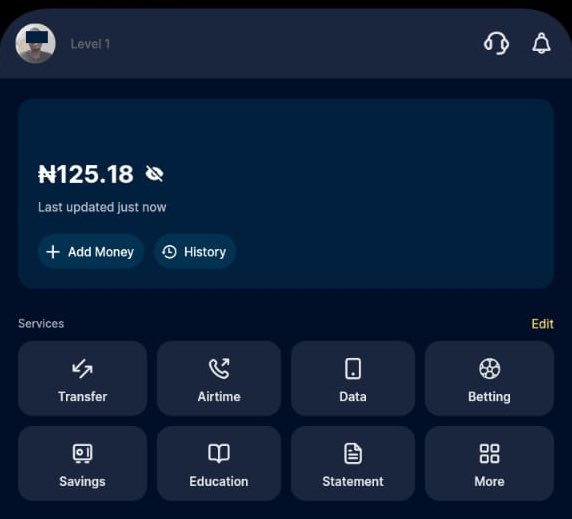
Enter your login details or use biometrics to access the Moniepoint app. Once logged in, you will see your dashboard.
Step 2: Tap on Your Profile Picture
Look at the top right corner of the home screen.
You will see your profile picture there.
Tap on it. This will open your account section where you can access personal settings and other account options.
Step 3: Select Settings
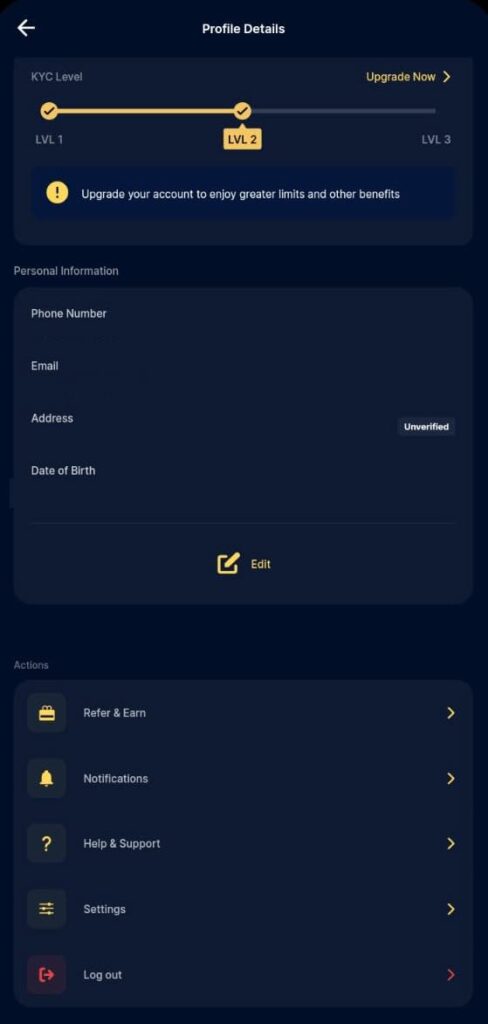
After tapping your profile picture, you will see different account options.
Look for “Settings” and tap on it.
This area controls how your account works. It includes security options, profile updates, and notification settings.
Step 4: Select Notification Preferences
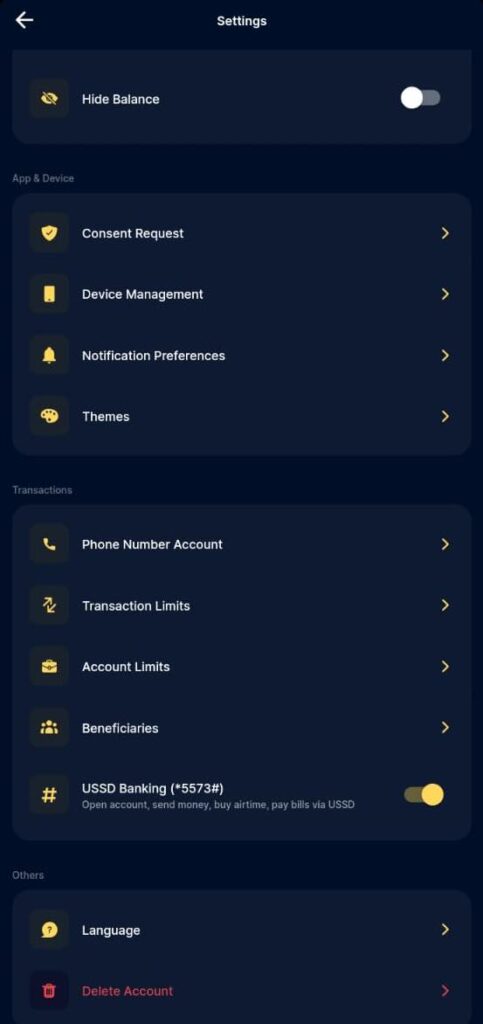
Under Settings, find “Notification Preferences.” It is in App & Device category.
Tap on it to open the notification settings page.
This is where you can manage how you receive alerts: SMS, Push notifications, or Email.
Step 5: Disable SMS Alerts
Moniepoint separates Credit and Debit notifications.
If you don’t want to receive SMS alerts for transactions:
- Toggle off SMS under the Credit section.
- Toggle off SMS under the Debit section.
You can disable one or both. It depends on you.
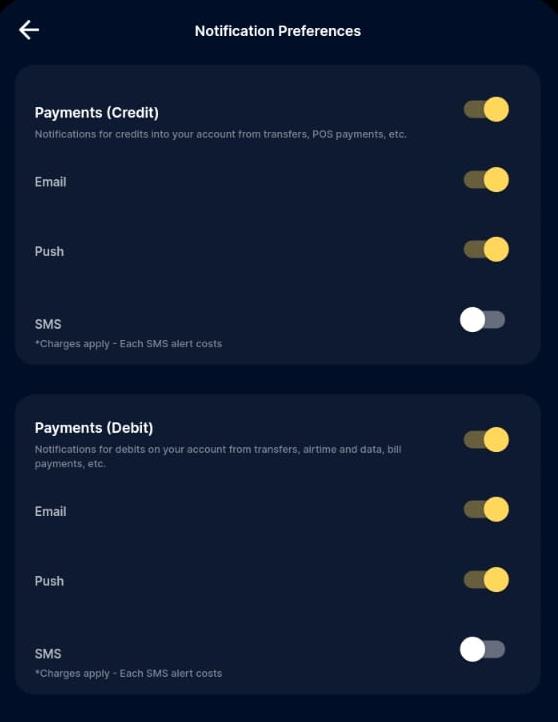
Make sure the toggle shows it is turned off before you exit the page.
That is how to successfully disable SMS alerts on your Moniepoint bank account.
Credit Notification vs Debit Notification on Moniepoint App
Understanding the difference between credit and debit notifications on the Moniepoint App will help you decide which SMS alert to turn off — or if you should disable both.
What is a Credit Notification?
Credit notifications are alerts you receive when money is added to your account.
Examples include:
- Receiving a transfer from someone
- Interest payments
- POS payments or deposits
Under Credit Notifications, you will see:
- Push
- SMS (Charges apply)
Each option has a toggle button. You can turn any of them on or off based on your preference.
What is a Debit Notification?
Debit notifications are alerts you receive when money leaves your account.
Examples include:
- Sending money to another account
- Buying airtime or data
- Paying electricity bills and so on
Under Debit Notifications, you will also see:
- Push
- SMS (Charges apply)
Each option comes with a toggle. You can switch them on or off anytime.
Why This Matters
If you understand how both notifications work, you can:
- Turn off SMS for only credit alerts
- Turn off SMS for only debit alerts
- Or disable both if you prefer
This helps you control your notifications better and avoid unnecessary SMS charges.
Things to Keep in Mind Before Switching Off SMS Alerts
Before you disable SMS alerts on your Moniepoint bank app, there are a few important things you should know.
1. You May Miss Real-Time Transaction Updates
Once SMS alerts are off, you will not receive instant text messages for debit or credit transactions.
You will miss instant notifications if you do not:
- Check your Moniepoint app regularly.
- Enable push email on your smartphone.
- On your mobile data to receive push and email notifications real-time
2. Push Notifications Can Be a Better Option
Push notifications are fast and free. They appear directly on your phone screen. If you decide to turn off SMS alerts, make sure push notifications are enabled.
3. Confirm Your Email Notifications Are Active
If you prefer email alerts, check that your email notifications are turned on. This helps you track transactions and stay informed.
It is always wise to keep at least one form of notification active for security reasons.
Alternatives to SMS Notifications
If you decide to turn off SMS alerts on your Moniepoint app account, you still have other reliable ways to monitor your transactions.
1. Enable Push Notifications
Push notifications are free and instant.
They appear directly on your phone screen once a transaction happens.
To use this option, make sure notifications are allowed for the Moniepoint app in your phone settings.
2. Use Email Notifications
You can receive transaction alerts through your registered email address.
Email alerts are detailed and easy to store for future reference.
Just ensure your email notification option is turned on inside the app.
3. Monitor Transactions Inside the App
You can always log in to the Moniepoint app and check your transaction history.
This gives you full details of all debit and credit activities on your account.
Keeping at least one notification method active helps you stay informed and secure.
FAQs
Here are answers to four common questions about turning off SMS alerts on Moniepoint.
- Can I disable SMS alerts for only debit or credit transactions?
Yes. Moniepoint allows you to switch off SMS notifications separately. You can disable SMS for only debit transactions, only credit transactions, or both. - Will turning off SMS alerts affect my account security?
No. Your account remains secure.
However, it is strongly recommended to keep at least one notification method active, such as push or email alerts, so you can monitor your transactions. - How do I enable SMS alerts back on?
Simply follow the same steps:
Profile Picture → Settings → Notification Preferences → Toggle SMS back on for Credit or Debit.
Make sure the toggle shows it is enabled before you exit the page. - Can I stop all notifications from Moniepoint?
Yes, you can.
But it is not advisable. Keeping at least one notification channel active helps you detect suspicious or unauthorized transactions quickly.
Summary
Moniepoint gives you full control over how you receive transaction alerts on your account. Switching off SMS alerts can help you reduce costs, avoid distractions, and improve your privacy. However, it is important to keep at least one notification method active so you do not miss important account updates.
To recap, here are the key points:
- How to Off SMS Alerts on the App: Open the Moniepoint app → Tap your Profile Picture → Select Settings → Choose Notification Preferences → Toggle off SMS under Credit and/or Debit.
- Turning off SMS alerts can help you save SMS charges.
- You can disable SMS for debit, credit, or both transactions.
- Push and email notifications are good alternatives.
- Always keep at least one notification method active for security reasons.
unleash.com.ng is dedicated to providing valuable information on managing your finances. Keep an eye out for future articles on Moniepoint and other helpful financial topics!
If you have any questions or need further assistance, feel free to ask in the comments below or on the Facebook page.
Leave a Reply